No Socks RPG Steam Deck Controls Guide
Handheld play after the July 2026 Steam launch — performance, buttons, and timed battle workarounds.
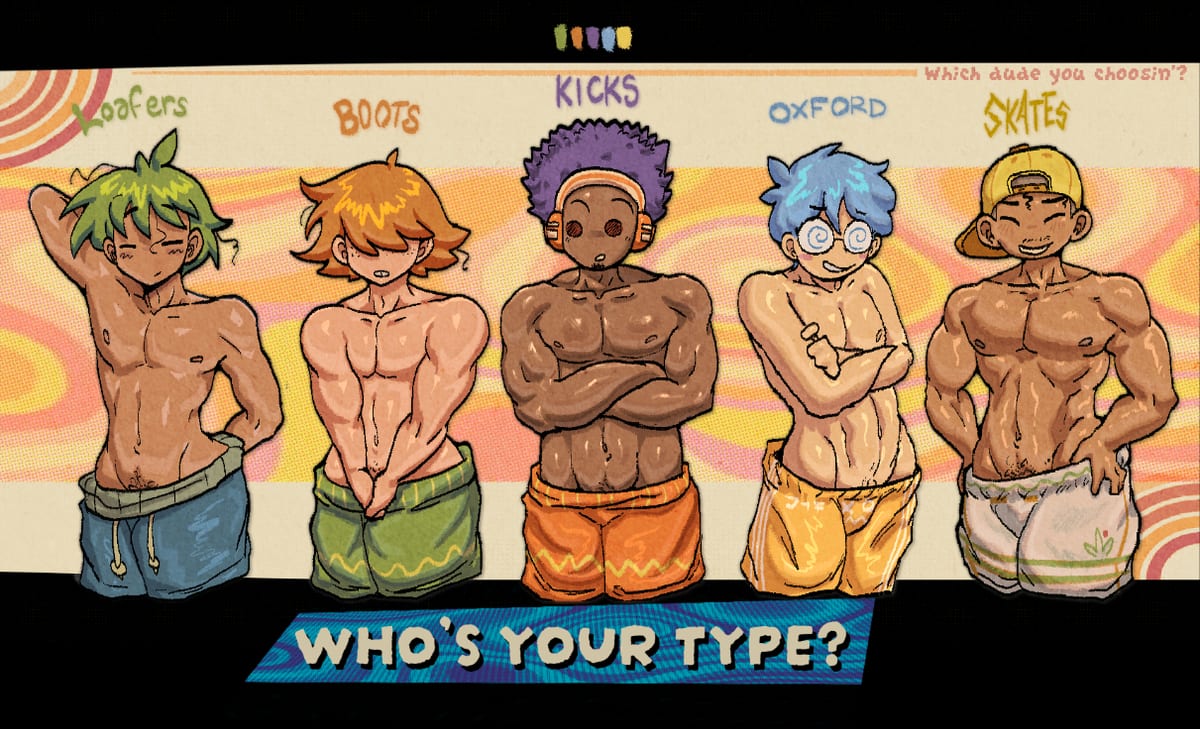
No Socks RPG landed on Steam in July 2026, and handheld players quickly confirmed it runs on Steam Deck through Proton. The RPG Maker export is not built natively for SteamOS, but community reports describe stable frame rates and playable timed combat once you map confirm, cancel, and action buttons comfortably.
This guide covers install steps, recommended Proton settings, timed chain tips on Deck controls, and when to fall back to trackpad mouse clicks — the same workaround PC players use when keyboard Z fails.
Quick setup
- Install No Socks RPG from your Steam library on Deck.
- First launch — if prompted, allow Proton compatibility (most players use default Proton Experimental or Proton 9).
- Open README Game controls.txt via Steam → Manage → Browse local files (or desktop sync) for official binding notes.
- Test confirm on the title screen with A before loading a long save.
- Consider Easy Mode on a secondary PC itch.io install if Normal BP tuning feels harsh on small screens — Deck runs the Steam Normal branch by default.
Performance expectations
RPG Maker titles are lightweight relative to AAA games. Expect:
- Smooth overworld exploration at default TDP.
- Battery drain similar to other 2D JRPG ports — moderate, not Cyberpunk-tier.
- Occasional shader stutter first launch — normal for Proton; relaunch if persistent.
If audio crackles, toggle SteamOS Compatibility settings or cap FPS in Quick Access menu.
Control layout on Deck
Deck maps Xbox-style face buttons. During timed combat, watch on-screen glyphs — the game may show keyboard labels (Z/X/C) even on controller. Map mentally:
| Prompt style | Deck button |
|---|---|
| Confirm / advance dialogue | A |
| Cancel / menu back | B |
| Menu / pause | Start |
| Timed hit prompts (varies) | A, X, Y, or B as shown |
| Movement | Left stick or D-pad |
Party members Bitsy, Risque, and Frankie add their own timed windows once recruited — same rule: match the glyph, not the keyboard letter name.
Timed combat tips handheld
- Hold Deck comfortably — action commands punish cramped thumbs. Rest palms on grips.
- Use haptics as rhythm cue — light rumble can mark chain windows if enabled system-wide.
- Trackpad right click — RPG Maker battles allow mouse selection. If face buttons miss chains, swipe right trackpad to move cursor and click enemies — documented PC workaround in Keyboard and Mouse.
- Pause between bosses — suspend via Steam menu; avoid force-quitting mid-save.
Deck players tackling 100 Floors of Despair should enable autosave habits — long sessions drain battery before dungeon milestones.
Steam Input considerations
If buttons double-fire or fail in battle:
- Game properties → Controller → set to Gamepad with mouse trackpad or disable extra layers.
- Exit Steam Input per-game if community templates conflict — mirror Controller Setup PC advice.
- Reboot Deck after changing Proton version — stale mappings cache occasionally.
Battle Points menus on Deck
The Steam build uses Normal ruleset BP menus by default. Menus work with gamepad on Deck more reliably than Android touch, but still slower than keyboard for min-maxers. If BP screens feel tedious:
- Play on Easy Mode via separate itch.io install on PC and treat Deck as story-only — not ideal but valid.
- Allocate BP during quiet story beats, not mid-dungeon.
- See Battle Point Builds for priority stats before spending points.
Saves and cloud
Enable Steam Cloud if you swap between Deck and desktop — but verify both devices run the same v2.4 revision before loading. Cloud can sync corrupted legacy saves — read Save corruption fix before trusting old slots cross-device.
Desktop mode vs Gaming mode
Gaming mode is preferred for button-first play. Desktop mode helps if you need precise mouse chains for stubborn fights — attach a mouse or use trackpads as a hybrid setup.
Related guides
- Controls hub — all input methods.
- Controller Setup — shared gamepad troubleshooting.
- Steam launch July 2026 — storefront context.
- Getting Started — day-one progression without quest log.
Steam Deck turns Socks’ Magical Isles into a portable vacation — just expect RPG Maker keyboard prompts and keep mouse-style fallbacks ready when timed chains get picky on handheld.
Frequently Asked Questions
Quick answers to the most common questions.
Does No Socks RPG run on Steam Deck?
Yes via Proton. Community launch reports describe stable play after the July 2026 Steam release.
Which Proton version should I use?
Start with Steam default Proton Experimental. Switch only if you see crashes or audio glitches.
Can I use mouse clicks for timed combat on Deck?
Yes — right trackpad moves cursor; clicking enemies chains attacks when face buttons miss windows.
Is Easy Mode available on Steam Deck?
Steam installs the Normal branch. Easy Mode remains a separate itch.io download on PC.